Step 1 – Setup and activate the integration method
PayTabs Mobile SDKs streamline the integration process with the PayTabs payment gateway by offering a pre-configured payment interface. This interface efficiently manages card data entry, billing and shipping information, and automatically supplements any missing details required to complete the transaction flow.
System Requirements
To start integrating your system through this SDK, kindly make sure of the following system requirements first to avoid any environmental issues:
- Having a PayTabs merchant account relative to your business country.
Setup, Activate and Upgrade the integration method
We will walk you through how to manage the setup of our iOS SDK from scratch. You will be introduced to how to install the SDK, activate it, and upgrade it as well if needed. You will be also introduced to how to uninstall it as well if needed. Kindly take your time in reading and simulate the following guidelines:
That for the version number, please use the latest version according to our latest update on our repository.
How to install and activate this SDK?
Details
You can install this SDK using several ways as shown below:
CocoaPods
CocoaPods is a dependency manager for Cocoa projects. For usage and installation instructions, visit their website. To integrate PayTabs SDK into your Xcode project using CocoaPods, specify it in your Podfile:
pod 'PayTabsSDK', '~> X.X.XX'
Then after that, you can just run the following command in the project directory:
pod install
Carthage
Carthage is a decentralized dependency manager that builds your dependencies and provides you with binary frameworks. To integrate PayTabs SDK into your Xcode project using Carthage, specify it in your Cartfile:
github "Paytabscom/PayTabs-ios-library-sample" ~> x.x.xx
Then after that, you can just run the following command, then after this add the installed framework to your XCode:
carthage update
Manual
To install the SDK manually, simply follow the below steps:
- Download the framework.
- Navigate to General section of your Target.
- Drag PaymentSDK.xcframework file to Frameworks, Libraries, and Embedded Content section.
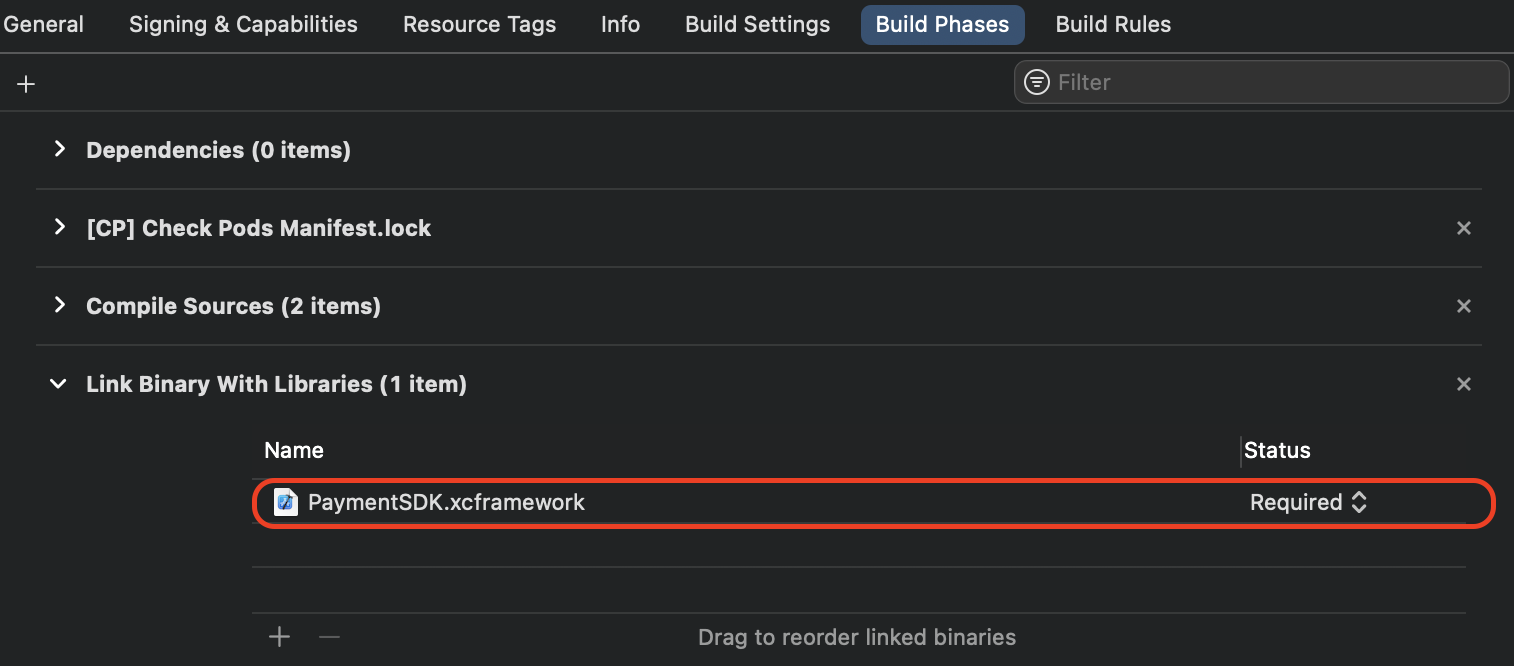
Prerequisites
Before starting the integrations with PayTabs SDK you should give our Card Scanner feature access permission to the camera. To perform such a step you should add the following key & value to your app as shown below:
<key>NSCameraUsageDescription</key>
<string>Write here your message to the user</string>
How to deactivate the SDK?
Nothing you have to do from your side in this step as our SDKs don't need activation, once you installed it properly, it will be considered activated automatically and ready for use.
How to upgrade the SDK?
Details
You can upgrade your existing SDK using several ways as shown below:
CocoaPods
CocoaPods is a dependency manager for Cocoa projects. For usage and installation instructions, visit their website. To upgrade the PayTabs SDK that has been built in your Xcode project using CocoaPods, specify it in your Podfile with the new SDK version you wanted to upgrade to:
pod 'PayTabsSDK', '~> X.X.XX'
Then after that, you can just run the following command in the project directory:
pod install
Carthage
Carthage is a decentralized dependency manager that builds your dependencies and provides you with binary frameworks. To upgrade PayTabs SDK that has been built in your Xcode project using Carthage, specify it in your Cartfile:
github "Paytabscom/PayTabs-ios-library-sample" ~> x.x.xx
Then after that, you can just run the following command, then after this add the installed framework to your XCode:
carthage update
Manual
To upgrade the SDK manually, simply follow the below steps:
- Download the new framework.
- Navigate to General section of your Target.
- Select the old PaymentSDK.xcframework file and press the "Delete" button from your keyboard to delete it first.
- Then finally, drag PaymentSDK.xcframework file to Frameworks, Libraries, and Embedded Content section.
How to uninstall the SDK?
Details
You can uninstall your existing SDK using several according to the method you choose to install it as shown below:
CocoaPods
To uninstall the PayTabs SDK from your Xcode project using CocoaPods, remove the line you already specified in your Podfile:
pod 'PayTabsSDK', '~> X.X.XX'
Then after that, you can just run the following command in the project directory:
pod install
Carthage
To uninstall the PayTabs SDK from your Xcode project using Carthage, remove the line you already specified in your Cartfile:
github "Paytabscom/PayTabs-ios-library-sample" ~> x.x.xx
Then after that, you can just run the following command, then after this add the installed framework to your XCode:
carthage update
Manual
To uninstall the SDK manually, simply Navigate to General section of your Target, then select the old PaymentSDK.xcframework file and press the "Delete" button from your keyboard to delete it.
Supported Payment Methods
This SDK is supporting various types of payment methods as shown below:
 CreditCard
 American Express
 mada
mada UnionPay
 OmanNet Debit
 UrPay
UrPay StcPay
 Valu
Valu Aman
Aman Meeza (QR)
 KnetPay (Debit)
- KnetPay (Credit)
 ApplePay
 Forsa
Forsa Halan
Halan Tamara
 Souhoola
 Tabby
Tabby Tru (Shahry)
You should know that all the main payment methods which are (Credit Cards - ApplePay) are managed (displayed and handled) in the SDK form itself. However, the rest of the payment methods mentioned above which are considered APMs (Alternative Payment Methods) will be displayed in a WebView using the Hosted Payment Page methodology instead to be managed on our side instead.
To know more about this, please check our Step 4 - Accepting the payment solution article.