Download Report
PayTabs provides you with a collection of API endpoints which used to process all payments, regardless of if they are through either your own payment pages, the managed payment pages, or if you are using the hosted payment pages.
Reports is a powerful feature designed to help merchants monitor and analyze their transaction flow. By using Reports, merchants gain the ability to access bulk transaction data in detail, making it easier to track payment activity, review order histories, and ensure smooth business operations.
After creating and configuring the report in the Dashboard, you can use the Reports API to download a specific report (excel sheet) by its Report ID. This allows you to access the full details of the report that was previously generated, including all configured fields and transaction data.
Let’s go through the following sections to learn how to perform this
The Endpoint and Related Postman Collection
In this tutorial, we will rely on the PayTabs Download Report Transaction API Endpoint, mentioned on the PayTabs API endpoints postman collection, which you can access fromhere. he endpoint will need to be accessed with the mentioned HTTP request via the below URL endpoint:
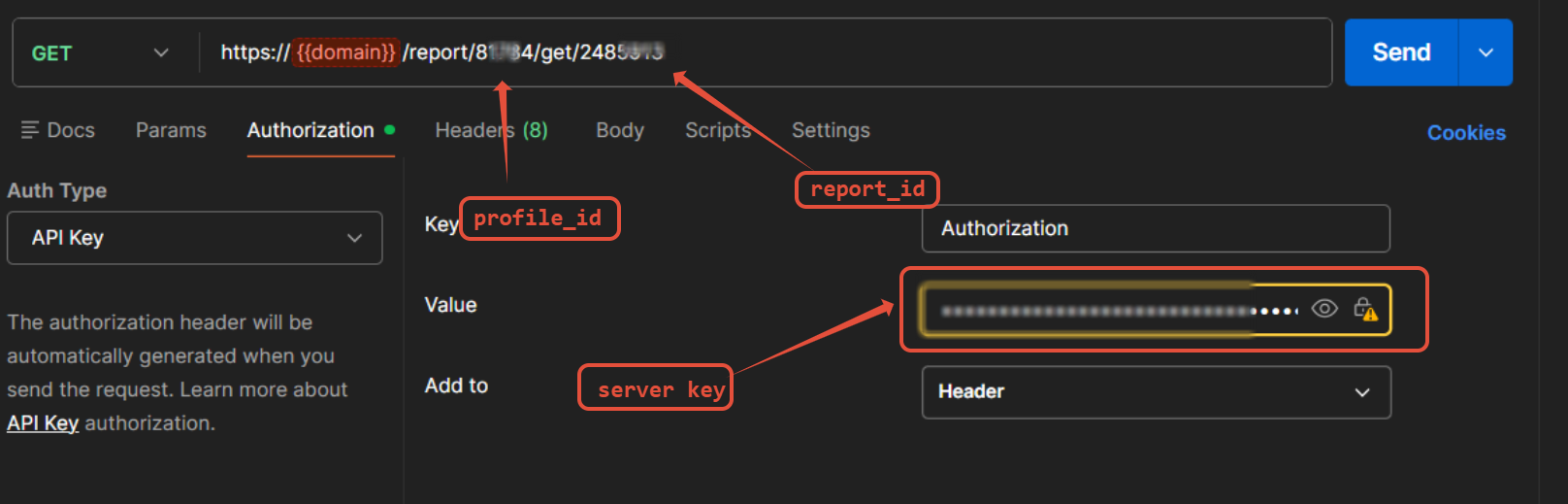
| GET | {{domain}}/report/[PROFILE_ID]/get/[REPORTID] |
|---|
Please note that not using the proper endpoint URL {domain} will lead to authentication issues within your responses. To find the your proper domain you can read ourWhat is my (Region)/(endpoint URL)?tutorial article.
- KSA
- UAE
- Egypt
- Oman
- Jordan
- Kuwait
- Iraq
- Morocco
- Qatar
- Global
https://secure.paytabs.sa/report/[PROFILE_ID]/get/[REPORTID]
https://secure.paytabs.com/report/[PROFILE_ID]/get/[REPORTID]
https://secure-egypt.paytabs.com/report/[PROFILE_ID]/get/[REPORTID]
https://secure-oman.paytabs.com/report/[PROFILE_ID]/get/[REPORTID]
https://secure-jordan.paytabs.com/report/[PROFILE_ID]/get/[REPORTID]
https://secure-kuwait.paytabs.com/report/[PROFILE_ID]/get/[REPORTID]
https://secure-iraq.paytabs.com/report/[PROFILE_ID]/get/[REPORTID]
https://secure-morocco.paytabs.com/report/[PROFILE_ID]/get/[REPORTID]
https://secure-doha.paytabs.com/report/[PROFILE_ID]/get/[REPORTID]
https://secure-global.paytabs.com/report/[PROFILE_ID]/get/[REPORTID]
The Minimum Required Parameters
To initiate a get list of report request, there are minimum required parameters that need to be passed with valid information. The specification of these required parameters is clarified below according to the query type:
- Via Get Request
In the Download Report, we simply use a GET request passing only the Profile_id and the reportID as a param in the endpoint URL to download a Report As shown in the below sample request.
| Parameter | Data Type | Min | Max | Required |
|---|---|---|---|---|
| INT STRING | Accept only valid profile number. | ✔ | |
| The merchant Profile ID you can get from your PayTabs dashboard. For more information please check our How to get your account information from PT Dashboard? solution article. To know more about this parameter please click here. | ||||
| ||||
| Parameter | Data Type | Min | Max | Required |
|---|---|---|---|---|
| INT | 1 | 9999999999 | ✔ |
reportID is one of the parameters that received from our side in the payload, but it's required parameter in the download Report Endpoint. comes in the response of Retrieve report list endpoint ,returned in success only | ||||
| ||||
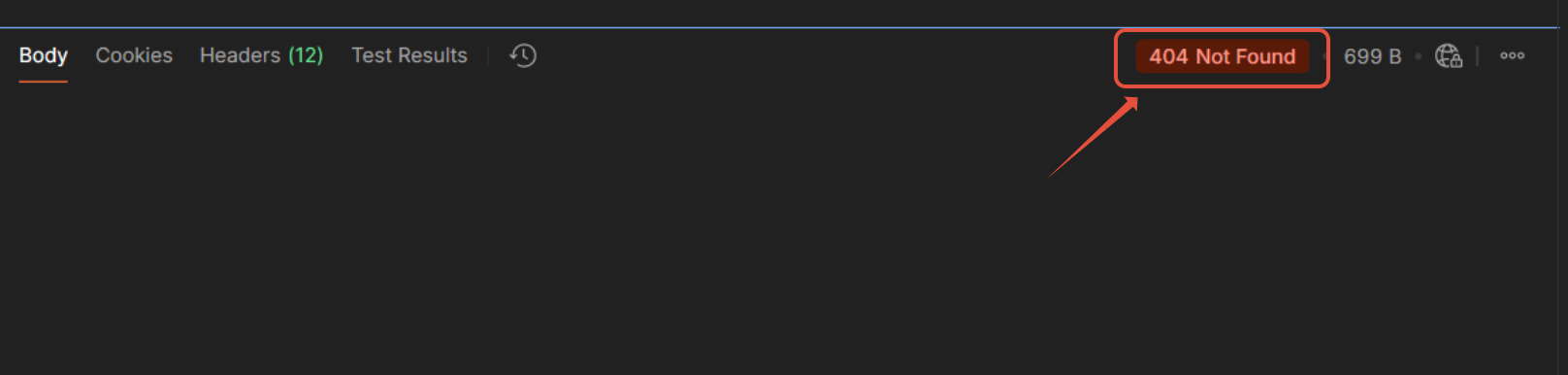
You should first verify whether the report contains any transactions, as a daily report might have none, which could lead to error ( 404 not found )
To check this, use the Get Report List Endpoint.(previous Endpoint ) If the report details include the transactions field, it means transactions are present; if the field is missing, the report has no transactions.
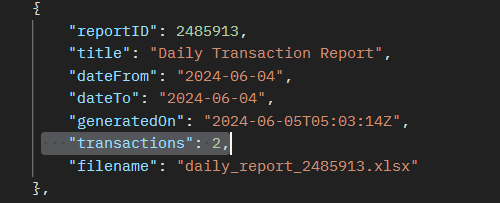
Additionally, reports that contain transactions will appear as downloadable in the Reports menu on the dashboard

Sample Request/Response Payloads
- Sample Request Payload
- Sample Response Payload
As mention before, for get request, you only need to pass the Profile_id ,thereportID and the server key to API key.
if you need to test it from the Postman, you should use send and download
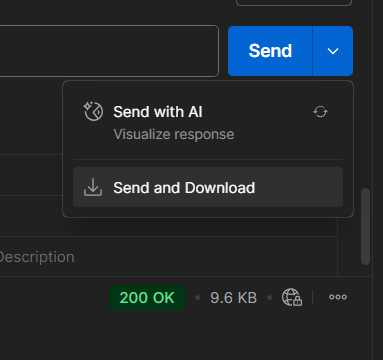
No respone in the payload, the file will be downloaded and receive
200 OK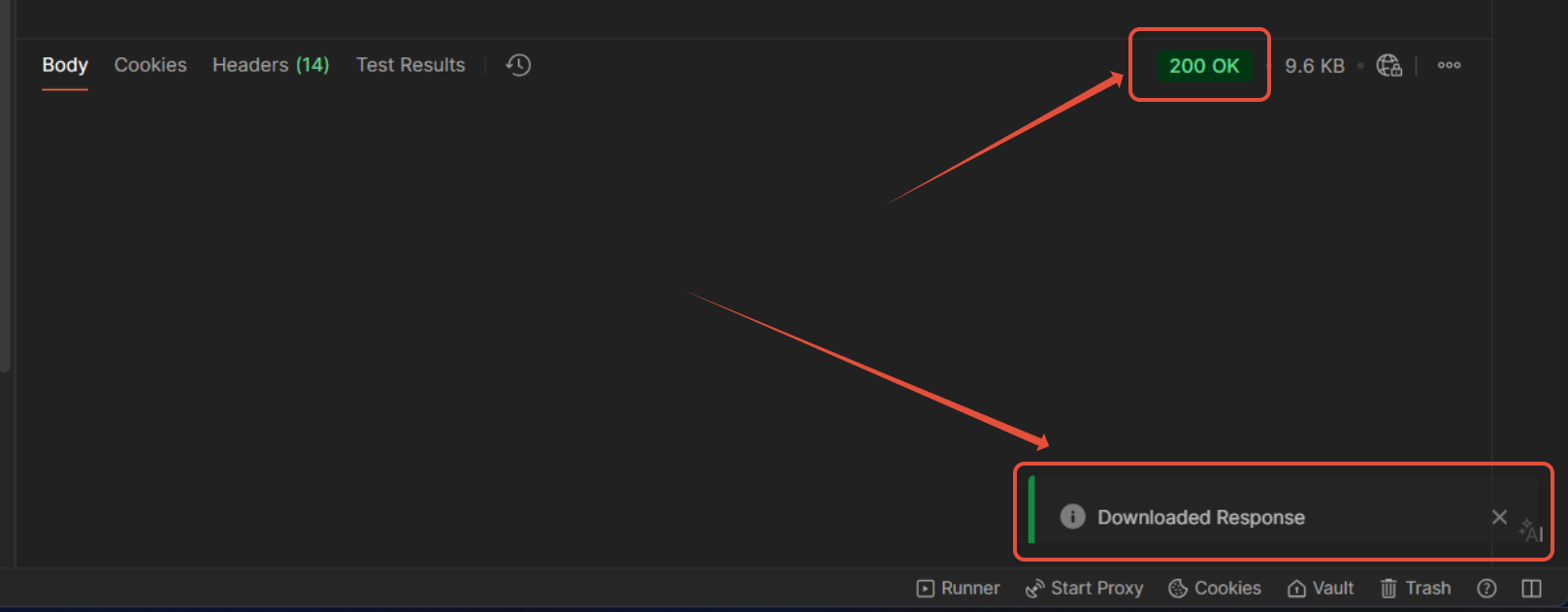
The steps in the request/response payload are provided to demonstrate the testing phase using Postman. However, in your actual implementation, the logic for downloading the report must be handled on your side.
The Content-Type you will receive in the response header is:
application/vnd.openxmlformats-officedocument.spreadsheetml.sheet
Expected Flow Behavior
- First of all, this endpoint is a management endpoint. You need to ensure that you have already created an active layout from the merchant dashboard, referring back to Step 1: Understanding Workflow and Prerequisites.
The reports will begin generating automatically in the Reports menu and will appear as shown below:
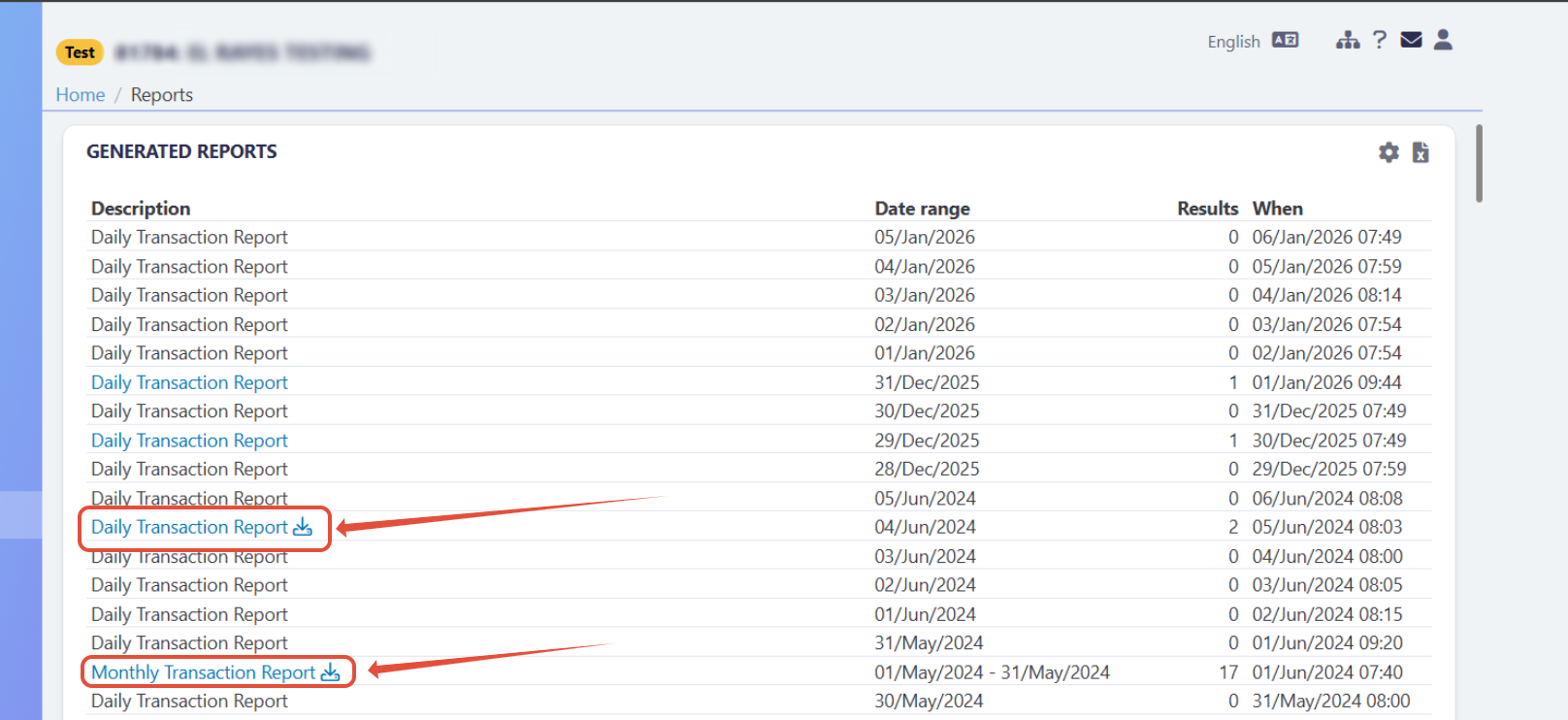
Once generation begins, you can start using this endpoint, following the steps outlined here: Minimum Required Parameters.
- In the successful case, you will be able to download a report as expected, similar to the response payload shownhere.
However, if an error occurs during report generation or you try to download a report that have no transactions, you will receive 404 Not Found while trying to download following steps here: