Request: PayPage Language (paypage_lang):
This parameter ONLY working with those integration types (Hosted Payment Page,Invoices ,Invoices(Payment Endpoint)).
This article is dedicated to the clarification of the paypage_lang parameter. paypage_lang is one of the optional parameters that the request should have, which indicates the payment page language that will be displayed to the customers. however, the default language is the client's browser preferred language if not intiated.
Customers will still have the ability to switch languages within the page itself which will be easier for your customer to navigate the payment page in his preferred language.
How this parameter could benefit you?
Here are some scenarios to help you understand when to use the paypage_lang parameter:
- User Experience: Enhances user experience by displaying the payment page in the preferred language.
- Error Reduction: Reduces confusion and errors during checkout by providing localized content.
- Accessibility: Improves accessibility for international customers, increasing conversion rates.
- Trust & Credibility: Builds trust and credibility by offering a familiar language environment.
- Compliance: Supports compliance with regional language requirements and standards.
- Automation: You could detect the customer’s location and automatically provide the preferred language from the available options.
Limitations
While the paypage_lang parameter offers several benefits, there are some limitations to consider:
- Language Support:Supports only three languages: English (
en), Arabic (ar), and French (fr). - Default Behavior:Default language is the client's browser preferred language if the parameter is not included in the request.
- User Control:Does not affect language switching options on the payment page; customers can still change language manually.
How to Use?
In order for you to start use the paypage_lang feature, you kindly need to follow the below simple steps:
- Within the initiation of the request payload of the payment page/link in Step 3 via any of the supported integration types by this feature, you will use the optional parameter
paypage_langwithin the main request payload itself as shown below:{
.
.
"paypage_lang": "en"
.
.
} - Once you post your request, you will receive a response that includes redirect URL like the following:
"redirect_url": "https://secure.paytabs.com/payment/page/599458B182E5B6B********************B4818688", - Finally, you will need to redirect your customer to this URL for them to proceed with the payment process. The customer will be directed to the payment page where they will see the desired langauge based on the selected
paypage_lang. You may want to check the customer experience in the upcoming section on Expected Payment Flow Behavior.
Parameter Specifications
-
paypage_langParameter paypage_langDescription Indicates the payment page displaying language.
To know more about this parameter please click here.Data Type STRING Required ✘ Validation Rules Either enorarorfrSample {
"paypage_lang": "en"
}
Request & Response Payloads Samples
- Hosted Payment Page
- Invoices
The below sample request payload will show you how you can pass the above-mentioned optional parameter, which are needed to be passed with valid values to perform a request. Along with the response payload received after using this request payload.
- Request Sample Payload
- Response Sample Payload
{
    "profile_id": 1800XXX,
    "tran_type": "sale",
    "tran_class": "ecom",
    "cart_description": "Description of the items/services",
    "cart_id": "Unique order reference00",
    "cart_amount": 25000.2,
    "cart_currency": "SAR",
   "paypage_lang": "en"
}
{
    "tran_ref": "TST22********159",
    "tran_type": "Sale",
    "cart_id": "CART#1001",
    "cart_description": "Description of the items/services",
    "cart_currency": "SAR",
    "cart_amount": "500.00",
    "return": "none",
    "redirect_url": "https://secure.paytabs.com/payment/page/599458B182E5B6B********************B4817FD44318539688688",
    "serviceId": 2,
    "profileId": 9*****4,
    "merchantId": 1*****7,
    "trace": "PMN****4.63****A8.00****C4"
}
The below sample request payload will show you how you can pass the above-mentioned optional parameter, which are needed to be passed with valid values to perform a request. Along with the response payload received after using this request payload.
- Request Sample Payload
- Response Sample Payload
{
    "profile_id": 1800XXX,
    "tran_type": "sale",
    "tran_class": "ecom",
    "cart_currency": SAR,
    "cart_amount": "9.5",
    "cart_id": "cart_12345_2",
    "cart_description": "Test Description",
    "hide_shipping": true,
    "paypage_lang": "en",
    "cart_id": "cart_555",
"invoice": {
        "shipping_charges": 0,
        "extra_charges": 0,
        "extra_discount": 0,
        "total": 9.5,
        "line_items": [
            {
                "sku": "sku",
                "description": "invoice item",
                "url": "https://paytabs.com",
                "unit_cost": 9.5,
                "quantity": 1,
                "net_total": 9.5,
                "discount_rate": 0,
                "discount_amount": 0,
                "tax_rate": 0,
                "tax_total": 0,
                "total": 9.5
            }
        ]
    }
}
{
    "tran_ref": "TST22********159",
    "tran_type": "Sale",
    "cart_id": "CART#1001",
    "cart_description": "Description of the items/services",
    "cart_currency": "SAR",
    "cart_amount": "9.5",
    "return": "none",
    "redirect_url": "https://secure.paytabs.com/payment/page/599458B182E5B6B********************B4817FD44318539688688",
    "serviceId": 2,
    "invoice": {
        "shipping_charges": 0,
        "extra_charges": 0,
        "extra_discount": 0,
        "total": 9.5,
        "line_items": [
            {
                "sku": "sku",
                "description": "invoice item",
                "url": "https://paytabs.com",
                "unit_cost": 9.5,
                "quantity": 1,
                "net_total": 9.5,
                "discount_rate": 0,
                "discount_amount": 0,
                "tax_rate": 0,
                "tax_total": 0,
                "total": 9.5
            }
        ]
    }
    "profileId": 9*****4,
    "merchantId": 1*****7,
    "trace": "PMN****4.63****A8.00****C4"
}
Expected Flow Behavior
- hosted & Invoices
- If you need to change the payment page language, you should include the field
paypage_langwhen initiating the payment click here following the paramter specifications and the needed configuration in the previous shared link.
- Then, you will receive a response that includes redirect URL. This means you have initiated a correct payment request/page successfully.
"redirect_url": "https://secure.paytabs.com/payment/page/599458B182E5B6B********************B4818688", - Next, you should redirect your customer to the payment page displayed using Language you have passed to the parameter
paypage_langusing one of the valid values mentioned in the parameter specificationsbe aware ofthe passedpaypage_langwill not affect the option of switching the language manually from the payment page - The Payment Page will display the language you choose. If you didn't define the PayPage language Paytabs Payment Page by default will use the client's browser preferred language as the default language
- After this, your customer would proceed normally with payment by providing his card information and press the "Pay Now" button.
- Then, he will be redirected to his issuer bank 3DS/OTP page to authenticate the used card
- Finally, he would be redirect to a success/error page accordingly. By this time, you will be able to see his transaction on your merchant dashboard, whether it's accepted/authorized or not.
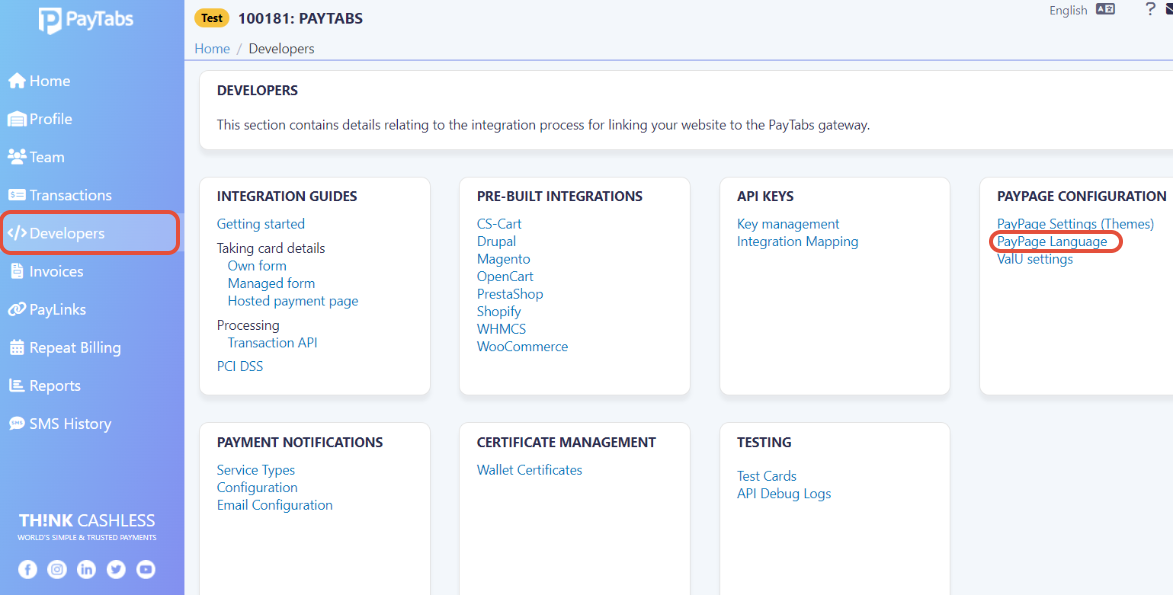
- You can change the various text, labels, and buttons used within the payment pages by uploading a language file to your PayTabs dashboard. Navigate to the Developers menu then select the PayPage Language link:
- Now you can upload the language file by choosing the file and then clicking on submit as shown below:
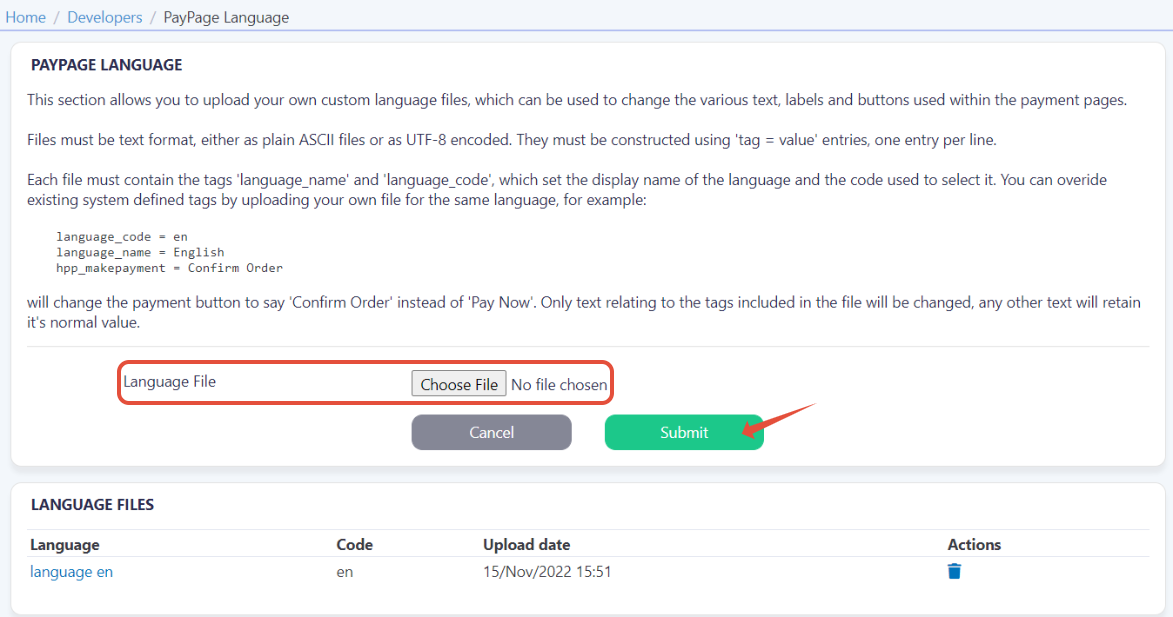
- The Language file specifications:
- The file must be in text format (
ar_lang.txt). - File encoding must be either plain ASCII or UTF-8 encoded.
- They must be constructed using
tag = valueentries, one entry per line. - Each file must contain the tags
language_nameandlanguage_code, which set the display name of the language and the code used to select it. - You can override existing system-defined tags by uploading your own file for the same language, for example:
language_code = en
language_name = English
hpp_makepayment = Confirm Order
- The file must be in text format (