Request | Show Save this card (show_save_card):
This parameter ONLY working with those integration types (Hosted Payment Page, Invoices , Invoices(Payment Endpoint) ).
This article is dedicated to the clarification of the show_save_card parameter. show_save_card is one of the optional parameters that the request should have, which will provide the payment page with a checkbox button to give the customer the option for the customer to choose so that his card details is saved or not however, the default is false and the check box didn't appear.
How this parameter could benefit you?
Here are some scenarios to help you understand when to use the show_save_card parameter:
- User Choice: Provides customers with a clear opt-in checkbox to save their card for future payments, improving transparency and consent.
- Faster Checkout: Encourages card saving, which reduces friction for returning customers and can boost conversion on subsequent purchases.
- Trust & Compliance: Aligns with best practices for explicit customer consent (e.g., GDPR-like consent principles) by making the decision visible and controllable.
- Customer Experience: Gives users control over whether their card is stored, reducing hesitation for first-time buyers.
- Operational Efficiency: Reduces support requests related to “why was my card saved?” by making the action explicit on the UI.
- Flexibility: Can be combined with business rules (e.g., show only for eligible payment methods or recurring use cases) to optimize adoption.
Limitations
While the show_save_card parameter offers several benefits, there are some limitations to consider:
- Tokenization Required: To save the card, the request must include the tokenization parameter (e.g.,
tokenise). - No Response Indicator: The
show_save_cardfield is not returned in the response, so you cannot directly know if the customer checked the box. If the customer agrees to save the card, you will receive a token in the response; if not, no token will be returned. - Eligibility: Card saving may be limited by payment method, issuer restrictions, regional rules, or customer preferences; the checkbox may be ignored if the method is ineligible.
How to Use?
In order for you to start use the show_save_card feature, you kindly need to follow the below simple steps:
- Within the initiation of the request payload of the payment page/link in Step 3 via any of the supported integration types by this feature, you will use the optional parameter
show_save_cardwithin the main request payload itself as shown below:{
.
.
"show_save_card": true
.
.
} - Once you post your request, you will receive a response that includes redirect URL like the following:
"redirect_url": "https://secure.paytabs.com/payment/page/599458B182E5B6B********************B4818688", - Finally, you will need to redirect your customer to this URL for them to proceed with the payment process. The customer will be directed to the payment page where the check box of save card appears under the card details. You may want to check the customer experience in the upcoming section on Expected Payment Flow Behavior.
Parameter Specifications
-
show_save_cardParameter show_save_cardDescription For showing the “save this card” option on the payment page.
To know more about this parameter please click here.Data Type BOOLEAN Required ✘ Sample {
"show_save_card": true
}
Request & Response Payloads Samples
- Hosted Payment Page
- Invoices
The below sample request payload will show you how you can pass the above-mentioned optional parameter, which are needed to be passed with valid values to perform a request. Along with the response payload received after using this request payload.
- Request Sample Payload
- Response Sample Payload
{
    "profile_id": 1800XXX,
    "tran_type": "sale",
    "tran_class": "ecom",
    "cart_description": "Description of the items/services",
    "cart_id": "Unique order reference00",
    "cart_amount": 25000.2,
    "cart_currency": "SAR",
    "show_save_card": true,
    "tokenise": 2
}
{
    "tran_ref": "TST22********159",
    "tran_type": "Sale",
    "cart_id": "CART#1001",
    "cart_description": "Description of the items/services",
    "cart_currency": "SAR",
    "cart_amount": "500.00",
    "return": "none",
    "redirect_url": "https://secure.paytabs.com/payment/page/599458B182E5B6B********************B4817FD44318539688688",
    "tokenise": 2,
    "serviceId": 2,
    "profileId": 9*****4,
    "merchantId": 1*****7,
    "trace": "PMN****4.63****A8.00****C4"
}
The below sample request payload will show you how you can pass the above-mentioned optional parameter, which are needed to be passed with valid values to perform a request. Along with the response payload received after using this request payload.
- Request Sample Payload
- Response Sample Payload
{
    "profile_id": 1800XXX,
    "tran_type": "sale",
    "tran_class": "ecom",
    "cart_currency": SAR,
    "cart_amount": "9.5",
    "cart_id": "cart_12345_2",
    "cart_description": "Test Description",
    "hide_shipping": true,
    "show_save_card": true,
    "cart_id": "cart_555",
"invoice": {
        "shipping_charges": 0,
        "extra_charges": 0,
        "extra_discount": 0,
        "total": 9.5,
        "line_items": [
            {
                "sku": "sku",
                "description": "invoice item",
                "url": "https://paytabs.com",
                "unit_cost": 9.5,
                "quantity": 1,
                "net_total": 9.5,
                "discount_rate": 0,
                "discount_amount": 0,
                "tax_rate": 0,
                "tax_total": 0,
                "total": 9.5
            }
        ]
    }
}
{
    "tran_ref": "TST22********159",
    "tran_type": "Sale",
    "cart_id": "CART#1001",
    "cart_description": "Description of the items/services",
    "cart_currency": "SAR",
    "cart_amount": "9.5",
    "return": "none",
    "redirect_url": "https://secure.paytabs.com/payment/page/599458B182E5B6B********************B4817FD44318539688688",
    "serviceId": 2,
    "invoice": {
        "shipping_charges": 0,
        "extra_charges": 0,
        "extra_discount": 0,
        "total": 9.5,
        "line_items": [
            {
                "sku": "sku",
                "description": "invoice item",
                "url": "https://paytabs.com",
                "unit_cost": 9.5,
                "quantity": 1,
                "net_total": 9.5,
                "discount_rate": 0,
                "discount_amount": 0,
                "tax_rate": 0,
                "tax_total": 0,
                "total": 9.5
            }
        ]
    }
    "profileId": 9*****4,
    "merchantId": 1*****7,
    "trace": "PMN****4.63****A8.00****C4"
}
Expected Flow Behavior
- hosted & Invoices
- If you need to show save card button, you should include the fields
show_save_card,tokenisewhen initiating the payment click here following the paramter specifications and the needed configuration in the previous shared link. - Then, you will receive a response that includes redirect URL. This means you have initiated a correct payment request/page successfully.
"redirect_url": "https://secure.paytabs.com/payment/page/599458B182E5B6B********************B4818688", - Next, you should redirect your customer to the payment page showing the checkbox of saving card ( save card )
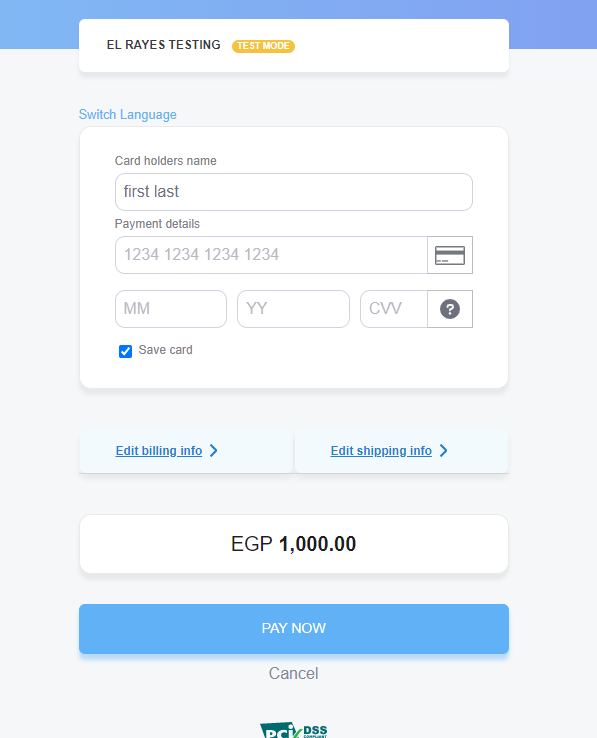
- in this step, the customer have the choice to keep save card checked or uncheck it.
- After this, your customer would proceed normally with payment by providing his card information and press the "Pay Now" button.
- Then, he will be redirected to his issuer bank 3DS/OTP page to authenticate the used card
- Finally, he would be redirect to a success/error page accordingly. By this time, you will be able to see his transaction on your merchant dashboard, whether it's accepted/authorized or not.
- At this point, we have two options based on the customer’s choice:
- If the customer checks the Save Card box: you will receive the callback/IPN for the transaction, including the token that contains the card information.
- If the customer unchecks the Save Card box: you will receive the callback/IPN as usual, without saving the card.